 En
En
 Es
Es
This feature is only available to users if the platform administrator has enabled it.
VNC (Virtual Network Computing) is a system for remote access to a computer's desktop. VNC allows you to send keyboard keystrokes and mouse movements from one computer to another, and to relay screen content over a computer network.
VMmanager uses VNC to remotely manage virtual machines (VMs).
VNC does not support clipboard transfer.
Connecting to a VM via VNC
You can connect to a VM:
- through the platform interface;
- using a third-party VNC client. For example, RealVNC Viewer or TightVNC .
Connecting from the VMmanager interface
- Enter Virtual machines → select the VM →
 menu → VNC . The VM desktop opens in a new browser tab.
 - Enter the login and password to connect to the VM.
Connecting with a VNC client
To create a connection, you will need to specify the VNC server details: address, connection port and password. This data can be viewed in the virtual machine card: Virtual machines → select the VM → VNC settings tab.
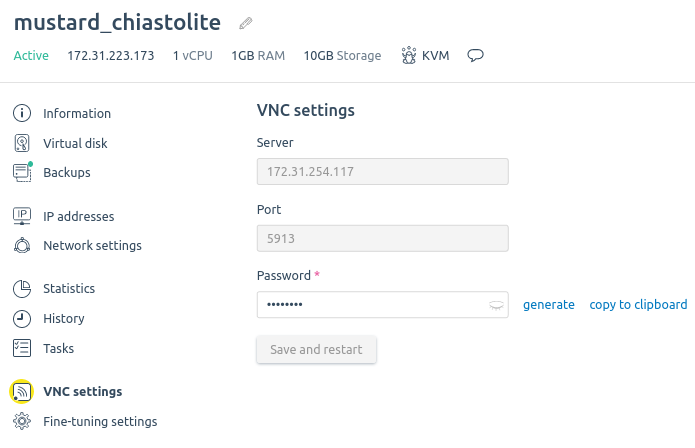
Connection example for RealVNC Viewer:
- Download and install the version of RealVNC VIewer for your operating system.
- Start RealVNC Viewer and create a connection to the VM:
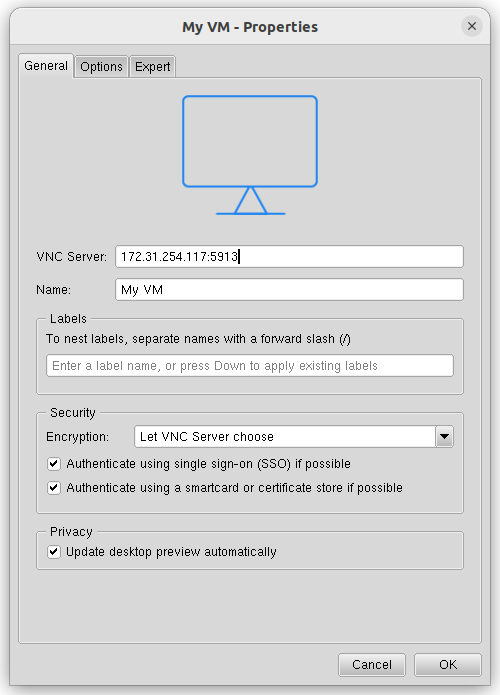
- Enter File → New connection .
- In the VNC Server field, enter the IP address and port of the VNC server, separated by a colon.
- In the Name field, enter an arbitrary name for the connection.
-
Press OK .
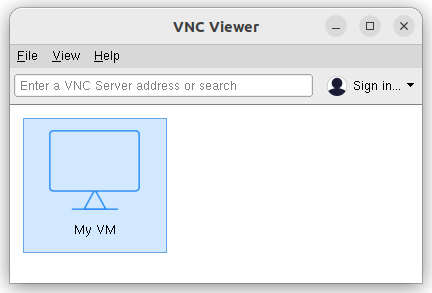
- To connect to a VM, double-click the connection icon.
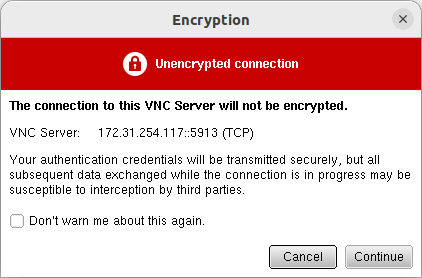
- If RealVNC VIewer displays a warning about an unsecured connection, press Continue .
- In the Password field, enter the password for the VNC server and press OK .
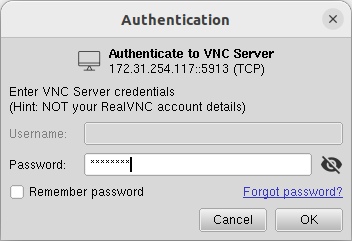
- Enter the login and password to connect to the VM.
Possible connection issues
If the VM was suspended and then resumed:
- existing VNC connections may be terminated. It is recommended to create a new connection;
- when connecting for the first time, messages such as the following may appear in the system log Ignore these messages and press Enter in the connection window.
clocksource: timekeeping watchdog on CPU0: Marking clocksource 'tsc’ as unstable because the skew is too large:
tsc: Marking TSC unstable due to clocksource watchdog