En
En
 Es
Es
You can connect up to four ISO images to a virtual machine (VM). For example, you may need this to install your own operating system (OS). The ISO image can be uploaded from a public URL or a local computer.
When installing an OS on a VM from an ISO image:
- running scripts will be available only after QEMU Guest Agent detects the OS type;
- changing the password will be available only after QEMU Guest Agent detects the OS type, or after the VM is shut down.
To back up such a VM correctly, enter Virtual machines → select the VM →  menu → VM parameters → Fine-tuning settings → Resources and limits → Partition to expansion and specify the partition where the root file system is located.
ISO images management
To connect an ISO image:
- Enter Virtual machines → select the VM → menu → ISO images.
- Specify the image settings:
- Select a method for uploading the image:
- From repository — select the ISO image from a connected repository;
- Local file — select the image file in iso format on your local computer;
- Image URL — enter the URL where the ISO image is available. The image can be available via HTTP(S) or FTP.
- To upload from a local file or URL:
- Select the OS type:
- Linux;
- Windows;
- FreeBSD;
- Other OS.
- Select the OS type:
- Specify the Image tags for the connected OS if this VM needs to run scripts. The script will run on the VM if at least one of its tags matches the OS tag.
- If a NAS storage is connected to the cluster, you can save the image file to the repository. To do this:
- Enable the Save ISO image to repository option.
- Select a Repository.
- Specify the arbitrary Note.
- To add an ISO image, click the Connect another ISO image button and specify the image settings. To remove an ISO image, click the Cancel connection button.
- If you need to start a VM from one of the images, select that image from the list. The VM will be restarted. If you do not need to boot from an image, disable the Start VM from ISO image option.
- Select a method for uploading the image:
-
Click Connect. If this is the first ISO image to be attached to this VM, it will be rebooted. After uploading, you can connect to the VM via VNC or SPICE.
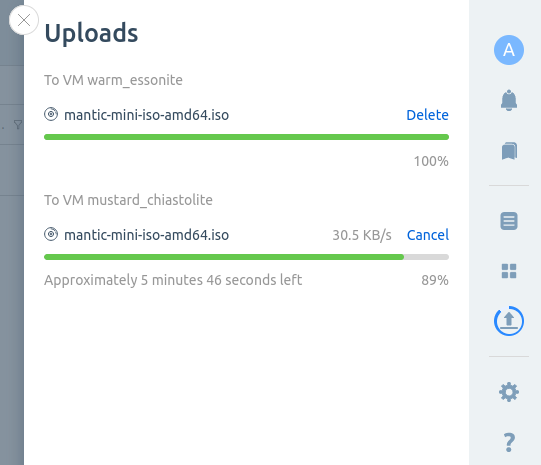
To view the image upload process, click on the VM status. The upload indicator will open in the drawer. In this drawer, you can Cancel the download.If the ISO image is uploading from a local computer, the upload will be interrupted when the page is refreshed or closed in a browser.
You can manage connected ISO images in the VM card on the Virtual disks tab. Available actions:
- boot the VM from an ISO image — click the icon in the image row → Start VM from ISO image;
- disable the ISO image — click the icon in the image row → Disconnect ISO image;
- disable all ISO images — Disconnect all ISO images button;
- change boot priority — Edit button → drag and drop the images into the desired order.
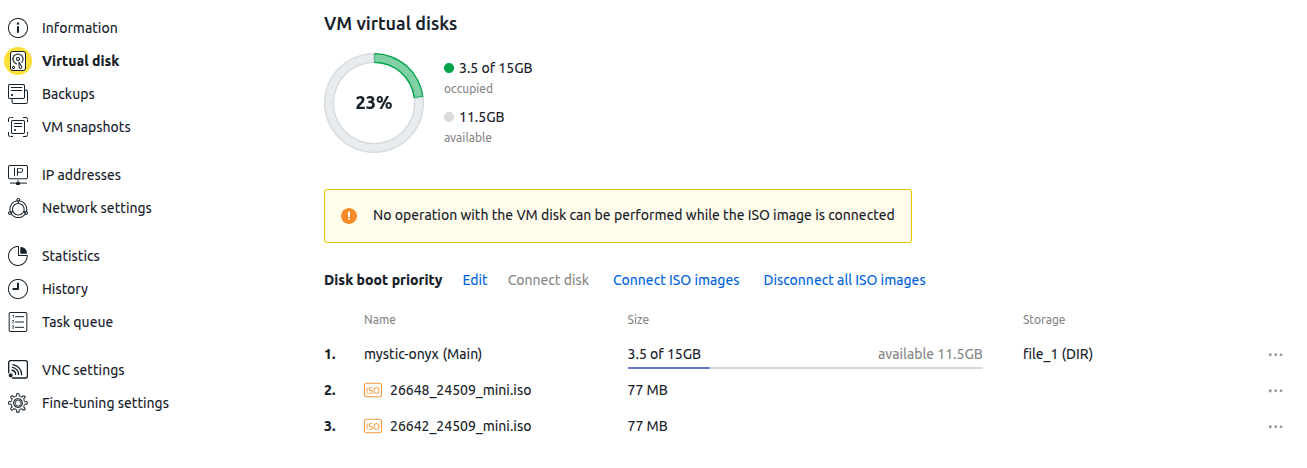
If you booted the VM from an ISO image, The OS has been reinstalled option will appear on the form when you disconnect the image:
- leave the option enabled if you installed the OS from an image. In this case, the platform will reboot the VM with the new OS. The VM card will display the installed OS;
- disable the option if you did not reinstall the OS. This will preserve the VM's original state — the VM card will display the old OS.
Upload manager
You can monitor and manage the process of uploading ISO images via the upload manager. To do this, click the  icon in the right-hand menu.
Possible actions:
- Cancel — cancel the image upload;
- Delete — delete the upload record from the list;
- Remove the completed uploads — delete all entries of completed uploads from the list.