 En
En
 Es
Es
Description
You need to disable the display and use of personal account balances in BILLmanager for the provider's clients. For example, so that the provider's clients can pay for services only using available payment methods.
The article considers two user cases:
- disabling balance display. In this case, the provider's client retains the ability to top up their balance under Billing → Payments, but the balance information is hidden:
- on the main page;
- in the top menu.
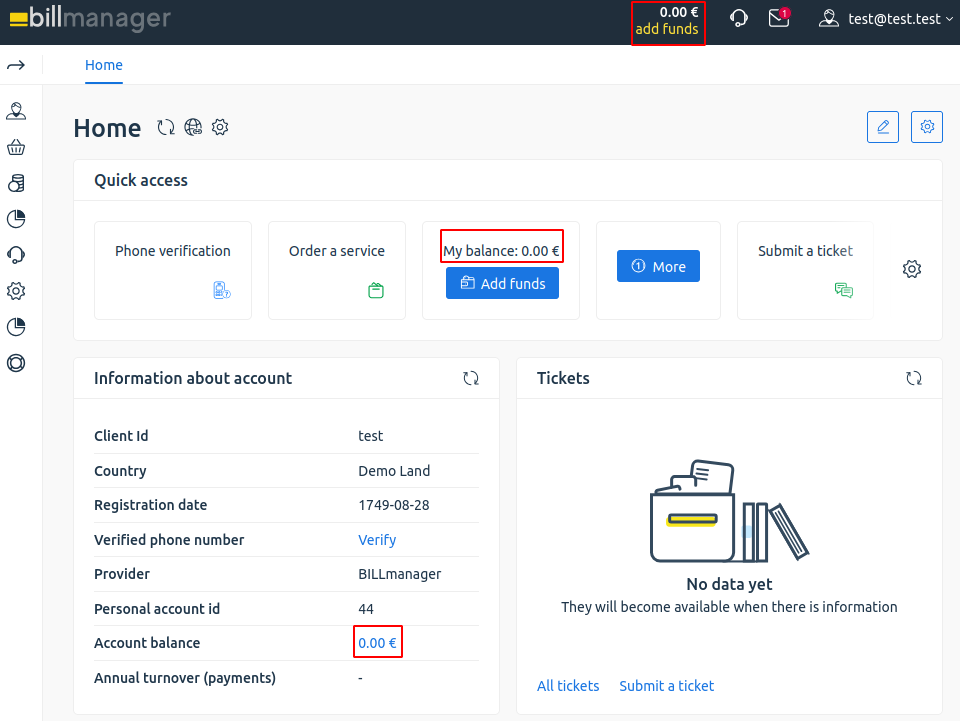
- disabling balance display and top-up. In this case, the provider's client cannot view or top up their balance:
- balance information is hidden on the main page and in the top menu;
- disabled the option to top up balance under Billing → Payments.
Note
In both cases, it will still be possible to top up your balance via API.
Solution
Disabling balance display
To disable balance display but retain the ability to top up your balance under Billing → Payments:
- Connect to the server with the platform via SSH. For more information about connecting via SSH, see Workstation setup.
- Create the file /usr/local/mgr5/etc/xml/billmgr_mod_disablefunds.xml with the following content:
<?xml version="1.0" encoding="UTF-8"?> <mgrdata> <handler name="remove_funds.sh" type="xml"> <event name="desktop" after="yes" proirity="after" base="project"/> </handler> <handler name="remove_funds.sh" type="xml"> <event name="dashboard" after="yes"/> </handler> <handler name="remove_funds.sh" type="xml"> <event name="dashboard.info" after="yes"/> </handler> </mgrdata> - In the directory /usr/local/mgr5/addon create the script file remove_funds.sh:
#!/bin/bash #Read XML data from standard input xml=$(cat) #User permissions check: if the user is not an administrator, the XML is returned unchanged if [[ "${AUTH_LEVEL}" != "16" ]]; then echo "$xml" exit 0 fi #function if [[ "${PARAM_func}" == "dashboard" ]] ; then #Delete the Top Up button and balance display from the main page echo "$xml"| sed 's|<toolbtn form="payment.add" name="balance_info"><button name="btn_topup" icon="mb-finance" size="small" theme="primary"/></toolbtn>||' elif [[ "${PARAM_func}" == "dashboard.info" ]]; then #Delete the balance information from the about account section echo $xml| sed 's|<balance func="payment.add">.*</balance>||'| sed 's|<msg name="balance">.*</msg>||' elif [[ "${PARAM_func}" == "desktop" ]]; then #Delete the balance display from the top of the interface echo $xml| sed 's|<balance func="payment.add">.*</balance>||' else #For all other cases, return the original XML unchanged echo "$xml" fi - Make the file executable:
sudo chmod a+x /usr/local/mgr5/addon/remove_funds.sh - Restart the platform and clear the XML cache:
sudo rm /usr/local/mgr5/var/.db.cache* -rf && rm /usr/local/mgr5/var/.xmlcache/* -rf && /usr/local/mgr5/sbin/mgrctl -m billmgr -R - Check the module's operation under the client's account. If an error occurs on the main page, delete the created files and restart the platform.
Disabling balance display and top-up
To hide the balance on the main page and disable its top-up under Billing → Payments:
- Connect to the server with the platform via SSH. For more information about connecting via SSH, see Workstation setup.
- Create the file /usr/local/mgr5/etc/xml/billmgr_mod_disablefunds.xml with the following content:
<?xml version="1.0" encoding="UTF-8"?> <mgrdata> <handler name="remove_funds" type="xml"> <event name="desktop" after="yes" proirity="after" base="project"/> </handler> <handler name="remove_funds" type="xml"> <event name="dashboard" after="yes"/> </handler> <handler name="remove_funds" type="xml"> <event name="dashboard.info" after="yes"/> </handler> <handler name="remove_funds.sh" type="xml"> <event name="payment" after="yes"/> </handler> </mgrdata> - In the directory /usr/local/mgr5/addon create the script file named remove_funds.sh:
#!/bin/bash #Read XML data from standard input xml=$(cat) #User permissions check: if the user is not an administrator, the XML is returned unchanged if [[ "${AUTH_LEVEL}" != "16" ]]; then echo "$xml" exit 0 fi #function if [[ "${PARAM_func}" == "dashboard" ]] ; then #Delete the Top Up button and balance display from the main page echo "$xml"| sed 's|<toolbtn form="payment.add" name="balance_info"><button name="btn_topup" icon="mb-finance" size="small" theme="primary"/></toolbtn>||' elif [[ "${PARAM_func}" == "dashboard.info" ]]; then #Delete the balance information from the about account section echo $xml| sed 's|<balance func="payment.add">.*</balance>||'| sed 's|<msg name="balance">.*</msg>||' elif [[ "${PARAM_func}" == "desktop" ]]; then #Delete the balance display from the top of the interface echo $xml| sed 's|<balance func="payment.add">.*</balance>||' elif [[ "${PARAM_func}" == 'payment' ]]; then #Delete the Create button in the payments section to limit the ability to top up the balance echo "$xml" | xmlstarlet ed \ -d "//toolbtn[@func='payment.add']" else #For all other cases, return the original XML echo "$xml" fi - Install the xmlstarlet utility. It is present in the executable file, but is missing from the server by default:
Astra Linux, Ubuntusudo apt install xmlstarletAlmaLinuxsudo dnf install xmlstarlet - Make the file executable:
sudo chmod a+x /usr/local/mgr5/addon/remove_funds.sh - Restart the platform and clear the XML cache:
sudo rm /usr/local/mgr5/var/.db.cache* -rf && rm /usr/local/mgr5/var/.xmlcache/* -rf && /usr/local/mgr5/sbin/mgrctl -m billmgr -R - Check the module's operation under the client's account. If an error occurs on the main page or under Billing → Payments, delete the created files and restart the platform.
Troubleshooting
If the plugins are not working correctly, get more detailed information about the errors:
- Set the maximum logging level for the file /usr/local/mgr5/var/billmgr.log. Read more in Logging in BILLmanager; Logging in BILLmanager.
- Recreate the error.
- Check the log /usr/local/mgr5/var/billmgr.log.
- Return the logging level to its original value.