 En
En
 Es
Es
Problem
After migrating your BILLmanager 6 platform to a new server, some sections of the interface display incomplete data. For example, you may notice missing records in Clients → Clients, Billing → Payments, or Products/Services. However, all the records are still present in the database.
This issue occurs because a trial license is active on the new server. The BILLmanager 6 trial version is limited to a maximum of 10 clients. If your database contains more clients than the license allows, the web interface hides the excess records along with their associated payments and services.
Diagnosis
This problem is confirmed when both of the following conditions are true:
- the database contains more records than the web interface displays;
- a trial license is active on the destination server.
To verify the cause:
- Compare the number of records in the database with those in the web interface:
- Connect to the server with the platform via SSH. For more information about connecting via SSH, see Workstation setup.
There are potential risks involved in altering a database. We do not recommend making manual edits to the database, as it can disrupt the correct operation of the platform.
Create a backup of the platform before performing any actions with the database.
- Connect to the database:
mysql billmgr - Run the following query to get the exact number of clients:
select count(*) from account;Example outputselect count(*) from account; +----------+ | count(*) | +----------+ | 9904 | +----------+ 1 row in set (0.00 sec)Comment - Note the result. For example, the output above shows the database contains 9904 clients.
- Compare this number with the records shown in the web interface. Go to Clients → Clients. Indicator of the problem: the web interface displays significantly fewer records than are present in the database.
- Connect to the server with the platform via SSH. For more information about connecting via SSH, see Workstation setup.
- Confirm a trial license is active on the destination server:
- via the web interface:
- Go to Help → About program.
- Check the Control panel field. If the license is trial, it will indicate Trial.
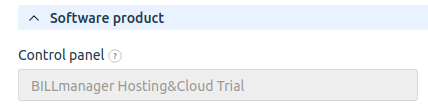
- via the Client Area:
- Go to Products/Services → Licenses.
- Find the license attached to the destination server.
- Check the license type. The trial version is indicated by a corresponding mark in the tariff or the Period column.
- via the web interface:
Indicator of the problem: a trial license is confirmed to be active on the destination server.
Solution
To resolve the issue:
- Activate a commercial license on the destination server. For details, refer to the guide Types of licences.
- Verify that all records are displayed in Clients → Clients.
Related topics: