 En
En
 Es
Es
In the Client service section you can:
- specify technical support contacts;
- set up links to documentation for users;
- add links to legal documents.
To configure the settings, in the right-hand menu, click  → Client service tab.
Contacts are specified separately for each interface language. If a language is disabled in the platform settings, you won’t be able to add contacts for that language. For more information on configuring languages, see the article User interface.
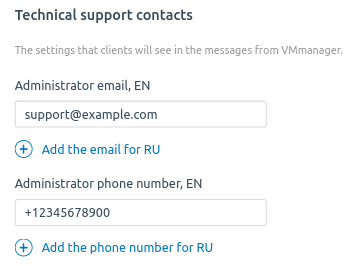
Technical support contacts
The specified contacts are displayed in the platform interface for users and advanced users. For example, you click the  icon in the right-hand menu on the password recovery page.
To specify contact details:
- Enter the Administrator email.
- If necessary, click Add the email and specify the admin's email address to be displayed in other interfaces. To delete the entry, click the
 icon next to it.
 - Enter the Administrator phone number.
- If necessary, click Add the phone number and specify the admin's phone number to be displayed in the other interfaces. To delete the entry, click the icon next to it.
- Enter the Support site URL.
- If necessary, click Add site and specify the support site to be displayed in the other interfaces. To delete the entry, click the icon next to it.
- Click Save.
Documentation
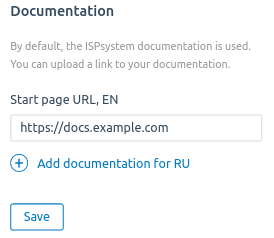
A link to the documentation is displayed in the menu for users and advanced users. If no settings are specified, the interface will display the link to ISPsystem documentation.
To add a link:
- Enter the Start page URL.
- If necessary, click Add documentation for RU and specify the link to be displayed in the other interfaces. To delete the entry, click the icon next to it.
- Click Save.
Links to documents
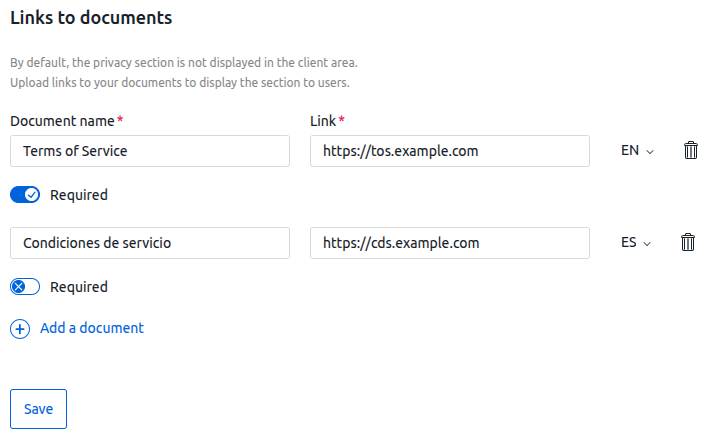
The settings specify links to legal documents that will be displayed in the user's client area in the Privacy section. If no links are specified, the Privacy section will not be displayed.
To configure the settings:
- Click Add a document.
- Enter the Document name and Link.
- Select the interface language in which to display the document.
- To make the document mandatory for reading, enable the Required option. New users will be required to confirm having read the document when registering.
- To add another document, click Add a document and enter its details. To delete the entry, click the icon next to it.
- Click Save.
Related topics: