 En
En
 Es
Es
A cluster is a group of servers in a single location. The key feature of such servers (cluster nodes) is their location and high data transfer speed between them.
Node connection
Before connecting, make sure that the server meets the requirements for the cluster.
To connect a node to the cluster:
- Go to Cluster nodes → Connect a node.
- Specify the General settings:
- Name of the cluster node. You may click generate to generate a random name.
- Cluster that the server will be connected to.
- Arbitrary Notes.
- Specify the Connection settings:
- Node IP address.
- Port to connect via SSH. The default value is 22.
- User. Use root account for correct operation of the node.
-
Enter the server User password or add a public SSH-key of the server with VMmanager. To do so, click on I want to use a public SSH-key, copy the key, and add it into the file /root/.ssh/authorized_keys on the server.
All platform connections to the cluster node are performed only with SSH key authorization.
If you specify a user password when adding a node, the platform connects to the server with that password and adds its own public SSH key to the /root/.ssh/authorized_keys file. Do not delete this key or disable SSH key authorization after adding a node. This will break the operation of the platform.
- For a cluster with the Switching network configuration type, specify Network settings:
- Automatic bridge creation — the platform will create a bridge on the server, which will be used by default when creating VMs. The IP address of the host will be transferred from the current interface to the created bridge;
- Manual bridge creation — to create a VM on the node, you will need to create the bridge on your own. Learn more about bridges in Network setting on the cluster node.
Enable manual bridge creation if:
- you plan to use the VLAN interface for the server IP;
- the server has a non-standard network configuration — there is no single interface for all traffic to pass through.
After connecting the node, you will be able to manually configure the necessary network settings.
-
Specify the VM distribution settings on the node:
- Limit of the vCPUs number — the maximum number of vCPUs that can be allocated to a VM on this node. The default value of the parameter is the number of CPUs on the server multiplied by the overselling ratio in the cluster. If this limit is reached, the creation of VMs on a node and the migration of VMs to that node will be prohibited. If the limits are not set, VMs will be created as long as the resources of the node allow it.
- RAM Overselling ratio. Learn more in Overselling.
- Limit of the VMs number — if this value is reached, the creation of VMs on the node and migration of VMs to this node will be prohibited. If the limit is not set, VMs will be created as long as the resources of the node allow it.
- Distribution filters — select the VM parameters with which VMs will be created on the cluster node. See the section VM distribution settings for details.
- If you are connecting the server to a cluster with IP-fabric network configuration type, specify the IPv6 address of the sever.
- If you are connecting the server to a cluster with the Routing network configuration type, enter the IP addresses for new VMs. You can enter individual addresses or specify a subnet of addresses by mask prefix. Start each address and subnet on a new line.
- Specify the Script execution settings:
- Click Select scripts button.
- Select from the list the scripts that you need to run when the node connects.
- In the Start Priority column select the order in which the scripts will be executed. To set the start priority for a script, drag it to the desired position.
-
Click Select X scripts. The name of the button will contain the number of scripts to run.
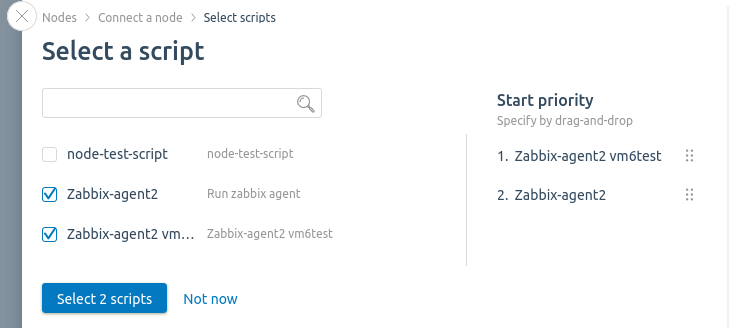 If the Autorun on clusters option is enabled in the script settings, you cannot disable the script and change the priority.
- Click Connect the node button.
- If you have selected a cluster with two network interfaces, specify the interface for main and additional network. Read more in Main and additional network. Click Continue.
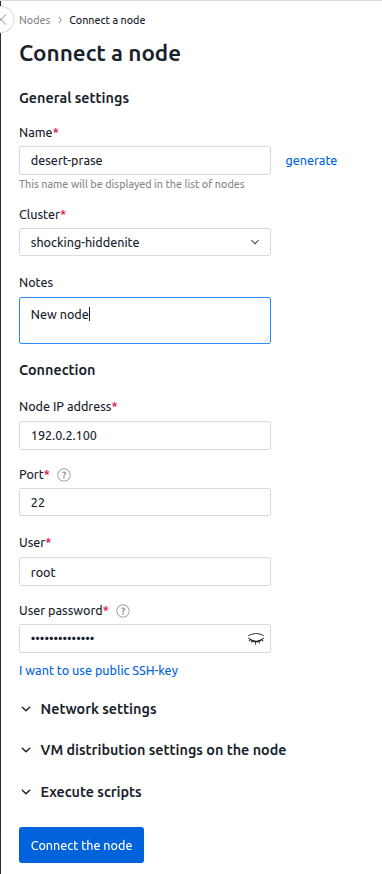
The system will install the required software and configure the server.
Post-connection configuration
Security settings
Allow users in the kvm group to work with hardware virtualization without root privileges. To do this, run the following commands on a cluster node:
printf 'KERNEL=="kvm", GROUP="kvm", MODE="0660"\n' > /etc/udev/rules.d/65-kvm.rules
udevadm control --reload-rules
udevadm trigger --name-match=kvm
chmod 0660 /dev/kvm
Cluster node dashboard
To view information about a cluster node, open its card: go to Nodes section → select the node. The cluster node card displays:
- node status;
- virtualization type — KVM or LXD;
- CPU — CPU load;
- RAM — RAM used;
- Storage — disk space used;
- overselling ratios;
- information about connected storages;
- Total VMs — total number of VMs on the node;
- number of VMs with a certain status;
- Estimated number — maximum possible number of VMs. The value is calculated dynamically and depends on available node resources;
- cluster name;
- operating system;
- IP-address of the node;
- Uptime — time of continuous node operation;
- Services — services running;
- note.
Possible node statuses:
When more nodes are connected, there may be cluster failures related to:
- exceeding the maximum volume of metadata in the NAS;
- processing a large number of platform requests;
- possible errors in the configuration of NAS connections due to the complexity of the architecture.

Cluster node dashboard interface
To view detailed information about a node, click the Parameters button in the node card.
Reconnecting a node
If the software on a node does not work correctly, the platform sets the status "Corrupted" for it. You can reconnect the problem node. To do this:
- On the server with the platform, examine the connection error log file /var/log/node_create/{node_id}.log. Fix the problems that prevent you from adding a node.
- In the Nodes section, in the row with the problem node, click the message in the Status column → Reconnect node button.
Change connection settings
If the IP address and/or SSH port on the cluster node has changed, VMmanager will lose connection with the node. To reconnect:
- Go to Nodes → select a node →
 menu → Change connection settings.
 - Specify the Node IP address.
- Specify the SSH port.
- Click Connect to node.
Changing the platform SSH key
To change the platform SSH key:
- Connect to the server with the platform via SSH.
- Back up the platform in case of possible failures:
vm backup - Update the platform private SSH key:
docker exec -it vm_box curl 'input:1500/vm/v3/ssh_key_replace' -X POST -H 'internal-auth: on' --data-raw '{}' - Restart the platform:
After the restart, the platform will delete the old public SSH keys on the cluster nodes and copy the new ones.vm restart
Replacing SSH keys on cluster nodes will restart the hawatch, node_alert, and monitor services.
The SSH private key update logs are saved to the /var/log/node_ssh_key_replace.log file in the vm_box container.
SSH keys are saved in the /opt/ispsystem/vm/etc/.ssh/ directory in the vm_box container. Files with old keys are saved with .bak extension.
VM distribution settings
You can configure how VMs are distributed across nodes. For example, to create only Linux VMs on one node and only Windows VMs on another node. The platform will be able to create VMs only on those nodes whose distribution settings match the VM parameters. If a suitable node is not found, the VM will not be created.
To configure distribution settings:
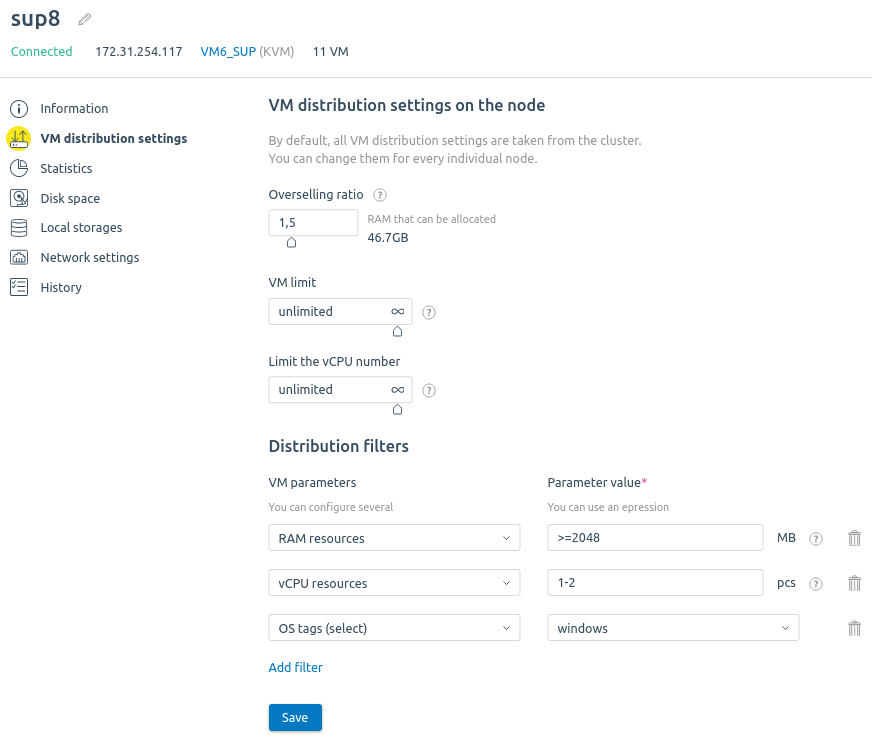
- Enter Nodes → select the node → VM distribution settings.
- Enter the RAM Overselling ratio. Read more in Overselling.
- Specify the VM limit — the maximum number of VMs on the node.
- Specify the Limit the vCPU number — the maximum number of vCPUs that can be allocated to VMs on this node.
- Select VM parameters for distribution filters:
-
OS tags — operating system template tags;
Some VMs may not have OS tags. For example, if the VM is created without an OS or from an ISO image. For such VMs, filters work as follows:
- if the filter checks for a match with a tag, the VM cannot be placed on this node;
- if the filter checks for a mismatch with a tag (the filter value is set in "!some_tag" format), the VM can be placed on this node.
- Configurations — the names of configurations;
- RAM resources — the amount of RAM;
- Storage resources — the volume of the disk;
- vCPU resources — the number of virtual CPUs;
- Complex filter — a condition with several parameters.
When entering conditions, use the filter syntax. If you want to set an additional condition, press Add filter. To delete a condition, press .
.
If you set multiple conditions, they will be combined with a logical “AND”. I.e, the platform will exclude cluster nodes that do not satisfy at least one of the conditions.
-
- Press Save.
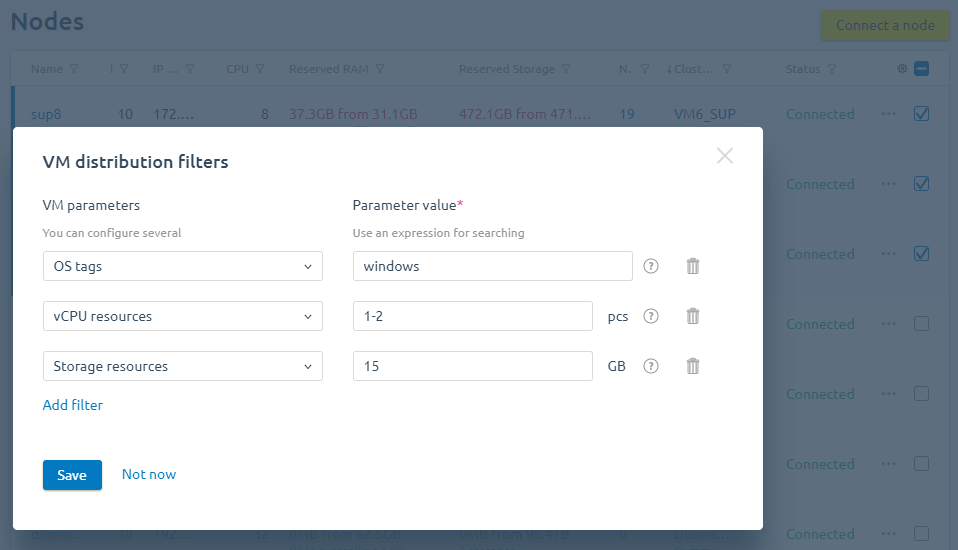
To configure VM distribution on multiple nodes of a cluster:
- Enter Nodes → select the nodes.
- On the bottom menu, press VM distribution settings.
- In the window that opens, configure the VM distribution filters.
- Press Save.
Forbid users to create VMs on a cluster node
To prevent users from creating virtual machines on a cluster node:
- Go to Cluster nodes → menu → Prohibit VM creation.
- Click on Confirm.
To cancel the settings:
- Go to Cluster nodes → menu → Allow VM creation.
- Click on Allow.
Switching to the Cockpit interface
If the Cockpit remote administration service is installed on a cluster node, you can open its web interface from the platform. To do this, click the Cockpit link in the node card or go to the Nodes section → select a node → menu → Cockpit. The service interface will open in a new tab.
The Firefox browser does not support navigating to the Cockpit interface from the platform. When you try to navigate there, a window with a link will appear. To go to the Cockpit, copy this link and open it in a new browser tab.
- Creating a script for the node
- Server requirements for the cluster
- Overselling
- Main and additional network
- Network setting on the cluster node
Knowledge base articles: