 En
En
 Es
Es
This is the documentation for the deprecated product BILLmanager 5. It is no longer updated and may be irrelevant. Documentation for the current version of BILLmanager can be found in the BILLmanager 6 section.
| Payment methods support | ||||
|---|---|---|---|---|
| Bank cards | Cash | E-wallets | Mobile payments | Online banking |
 | | |  | |
| Maestro, Mastercard, Visa. | Bank cash desks. | Paysera Wallet, WebMoney. | Giropay, iDEAL, POLi, Trustly | |
| Supported features | ||||
| Payments return | | |||
| Recurring payments | | |||
| Subscriptions | | |||
Configuring BILLmanager
Navigate to Provider → Payment method and complete the following fields:
- Step 1 — Select a payment method — choose "Paysera".
- Step 2 — Integration settings. Enter the integration details.
- Step 3 — Payment method settings. Enter the payment method parameters.
Integration
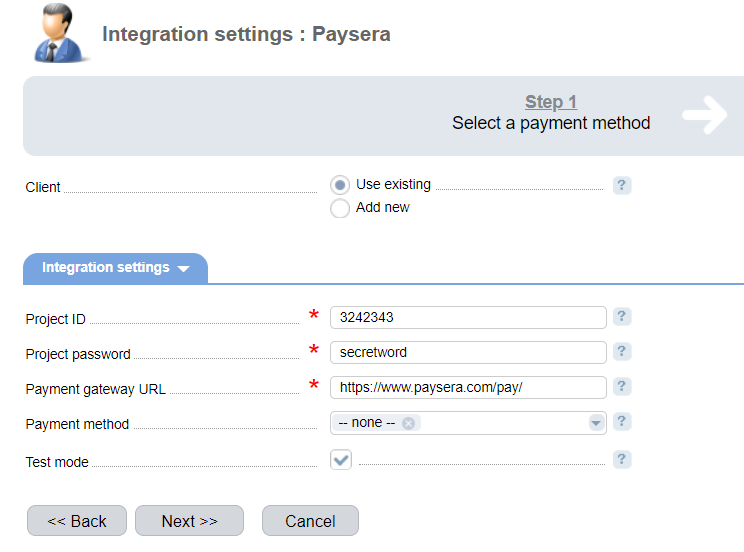
Client — select the existing account or register a new one. If you choose "Use existing", enter the following details:
Project ID — project unique identifier in Paysera.
Project password — project password in Paysera.
Payment gateway URL — enter the gateway URL for payments. Use "https://openapi.payseradev.com/gateway.do" for tests.
Payment method — select a payment system that the client will be redirected to automatically when making a payment. If this parameter is not set, a payment system can be selected on the PayBox web-site. A full list of available payment system will be shown after the payment method is added. A provider can choose a payment gateway on the payment system edit form. The payment system that does not support the selected currency won't be available.
Test mode — select the checkbox to activate a test mode for this payment method. The system won't charge the client but will process the payments correctly. To activate the test mode navigate to Project management → Payment collection → Allow test payments.
Selecting Add new will redirect you to the Paysera registration form.
Additional information
Refund
Refunds are not supported.
Logging
Paysera has the following log files:
- '/usr/local/mgr5/var/pmpaysera.log' — configuration details of the payment method.
- '/usr/local/mgr5/var/payserapayment.log' — payment log.
- '/usr/local/mgr5/var/payseraresult.log' — responses from the payment gateway.