 En
En
 Es
Es
This is the documentation for the deprecated product BILLmanager 5. It is no longer updated and may be irrelevant. Documentation for the current version of BILLmanager can be found in the BILLmanager 6 section.
If you have selected a "List" or "Multiple selection list" in the "input field type" for a parameter, you have to set the values. Parameter values are a list of elements that a client can select on a service order form. If you use pre-defined values of a standard product type, they will be uploaded by the system when the tariff plan is connected to a processing module. To add a custom parameter with values, you have to create the values manually in Products → Product types → Parameters → Values.
Some values may not be available for certain processing modules. To configure them, go to Products → Product types → Parameters → Values → Processing modules. Normally, providers use such configuration if one tariff plan is connected to several processing modules.
Parameter values
Add new values
Navigate to Products → Product types → Parameters → Values → Add.
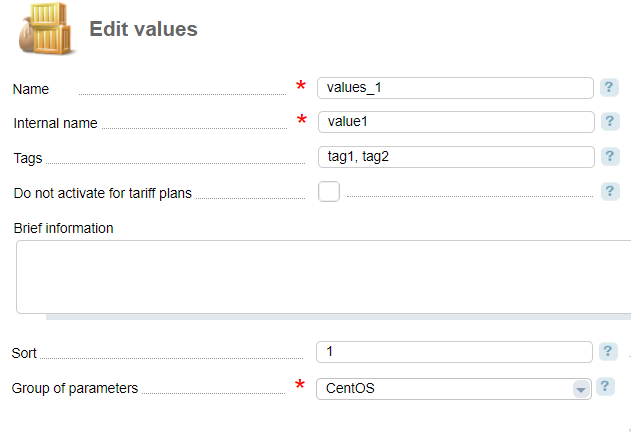
- Name;
- Internal name — enter a unique internal that that allows identifying a value in the list of processing modules;
- Tags — tags allow to indicate that the values of different parameters are compatible. E.g. tags allow you to specify that an OS template is compatible with a certain recipe;
- Do not activate for tariff plans — with this option enabled, the parameter value won't be automatically assigned to tariff plans;
- Brief information— brief information about this value. A client will see it on a service order form;
- Sort — set priority to show this parameter on a service order or edit form.
Values for OS and recipes
For VPS, a Virtual data-center, or a Dedicated server, BILLmanager automatically uploads the values of the parameters "Operating system" and "Pre-installed software (recipes)" from a control panel.
The billing system uses a processing module to upload the values. All the values will be activated for a newly created processing module. When updating the processing module, all new values won't be available for that module and its tariff plan. To manage active values of a processing module navigate to Products → Product types → Parameters → Values → Processing modules.
Windows operating systems are always disabled after installation because they cannot be used for free.
After you have added a service processing module that uses Windows templates activate the required values in Products → Product types → Parameters → Values.
Go to Products → Product types → Parameters → Tariff plans to select tariff plans for which this value will be activated. Add values of the parameters "Operating system" and "Pre-installed software (recipes)" in the OS template field when adding or editing the tariff plan.
Synchronization of values
Synchronization of values is an operation when BILLmanager uploads parameter values from a remote control panel. The billing system starts the synchronization automatically every 4 hours with the cron job: /usr/local/mgr5/sbin/mgrctl -m billmgr processing.syncserver.cron >/dev/null 2>&1.
Run the synchronization manually in Integration → Processing modules → Config.