 En
En
 Es
Es
Information about the equipment and other objects of the platform is presented in the form of tables. The data in the tables can be sorted and filtered by specified parameters. The tables contain brief information about the devices. You can view detailed information and make changes to the settings in the device card. To find an object in the platform, you can use the global search option.
Interface Language
The platform supports three interface languages: Russian, English, and Spanish. To change the interface language, click on your user icon in the top right corner and select the desired language from the list. The language will be applied immediately; you do not need to save changes.
You can limit the choice of platform languages. To do so:
- In the right-hand menu, click
 → in the left-hand menu, click Global Settings.
 - In the Interface Languages section, click Edit.
- Check the languages that users should be able to select.
- Select the Default Platform Language.
- Click Save.
Interface Color Theme
DCImanager 6 supports both light and dark themes. You can also allow the platform to detect and use your workstation's operating system theme.
To change the interface theme, click on your user icon in the top right corner and select the desired interface theme. The theme will be applied immediately; you do not need to save changes.
You can allow or prevent users from selecting the interface theme.
To manage theme selection:
- In the right-hand menu, click → in the left-hand menu, click Global Settings → the Selecting an interface theme section.
- Switch the Allow all users to select a dark theme toggle.
The setting will be applied immediately; you do not need to save changes.
View setup
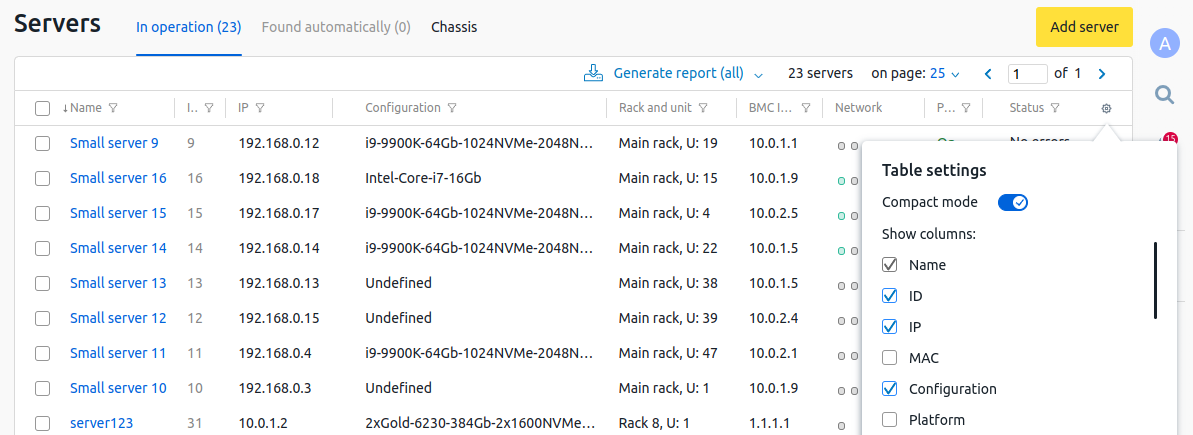
Platform tables have two types of view — full and compact. To select the view and columns displayed in the table, click the  icon.
icon.
Sorting and filters
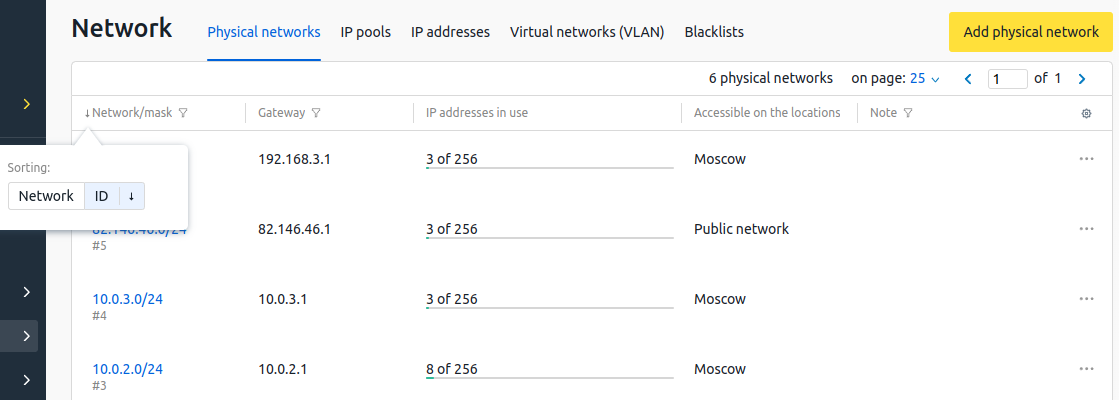
To sort the information in the table by column, click on the header of that column. If the column contains more than one parameter, the platform will offer the choice of the parameter to sort by. For example, physical networks can be sorted by address or id.
You can customize the display of information in the tables according to a given filter. To enter the filter conditions, click the  icon in the header of the column with the required parameter. Read more in Using filters.
Operations with objects
To perform an operation on a platform object, click the  icon in the object line and select the necessary operation. These actions are also available from the object card.
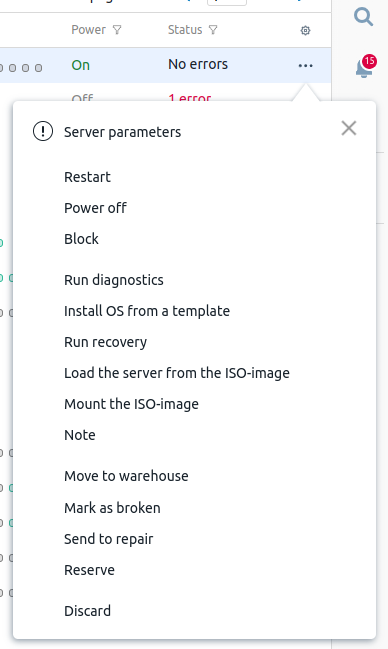
Server operations menu
Object card
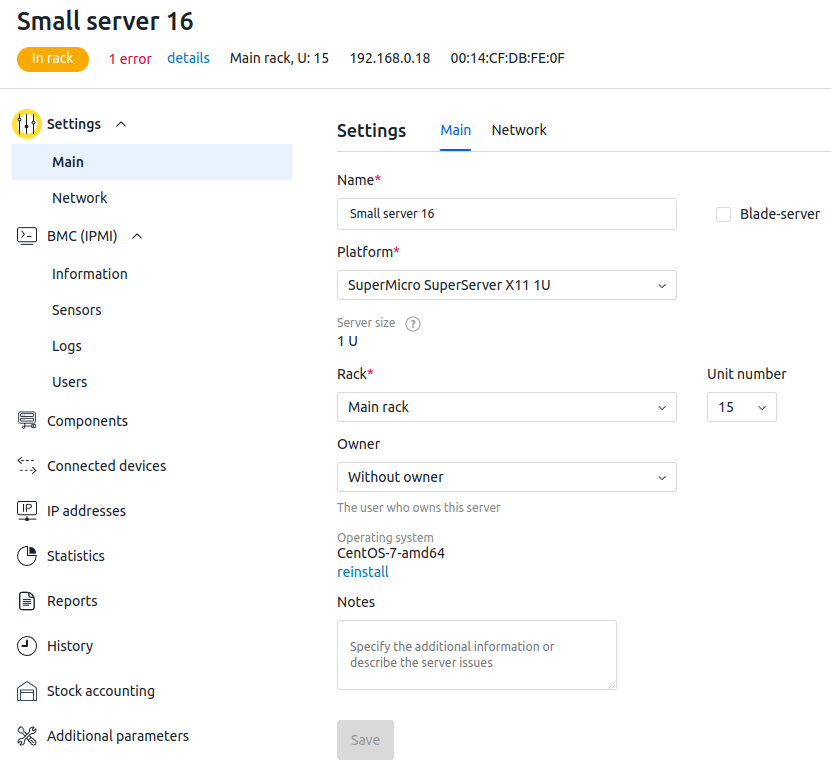
The card displays detailed information about the object, its settings and history. To enter the card, click on the name of the object in the table.
Global search
The global search allows you to find various platform objects. For example, equipment, racks, locations, warehouses, OS templates, IP address pools, users, etc. To use the search, in the right-hand menu, click the  icon and enter your query.
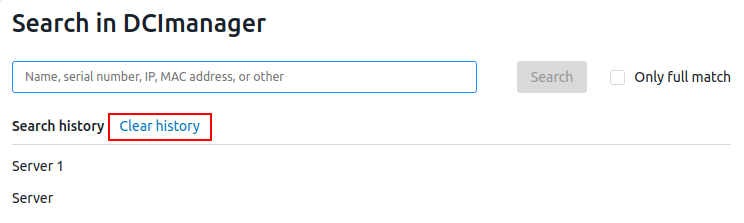
The platform saves the history of user queries. To delete old queries, click Clear History.
During the search, the platform checks the occurrence of words from the query in the names and properties of all objects. For example, the query Switch 192 can find devices:
- with the name Switch 192;
- with the name Switch 1922;
- with the IP address of 192.168.10.10.
To make your search more accurate, put quotation marks around the query. For example, the query "Server 1" will not find a device named Server 12, but it may find a Big Server 1 device.
To search by the exact object name, enable the Only full match option. For example, the query Server 1 with this option enabled can only find objects with the name or property Server 1.
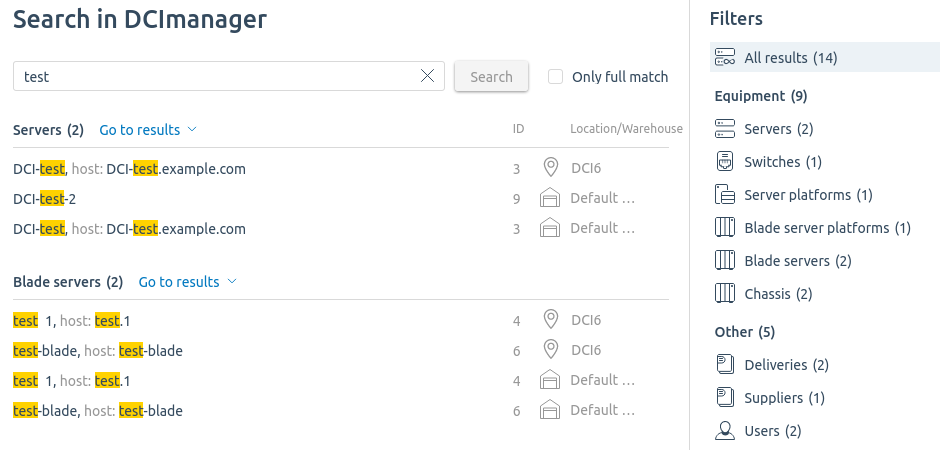
To filter your search results, select the desired category in the Filters column.
From the search results, you can go to the object card or to a table with objects filtered by query text:
- to go to a specific object, click on its name in the search results;
- to go to the table, click Show all results.
Bookmarks
You can add an interface page to your bookmarks to open it quickly later. For example, you can save a server table view with certain filters among your bookmarks.
Click on the  icon in the right-hand menu to manage bookmarks. To open a bookmark, click on it in the list.
You can pin a part of your bookmarks. The bookmarks that have been pinned are displayed at the beginning of the list.
Possible actions with bookmarks:
- Add — add the current page to bookmarks;
-
 — pin the bookmark;
 -
 — unpin the bookmark;
 -
 — edit the bookmark name;
 -
 — delete the bookmark;
 - Delete unpinned bookmarks;
- Delete all bookmarks.
Related topics: