 En
En
 Es
Es
You can enter, edit, and view information about virtual machines located on a server. This can be useful if:
- you need to know which virtual machines will be affected when servicing a physical server;
- you use various virtualization environments and need to know which virtualization environment is used on the server.
The current implementation only supports managing information about virtual machines without the ability to create, delete, or manage virtual machines.
Viewing and managing virtual machines on a server
Viewing virtual machine information
To open the list of virtual machines on a server:
- In the menu on the left, click Servers.
- Click on the name of the required server → Server Parameters. The server card will open.
- Go to the Virtual machines section. If information about virtual machines located on the server has been entered into the server card, it will be displayed in a table.
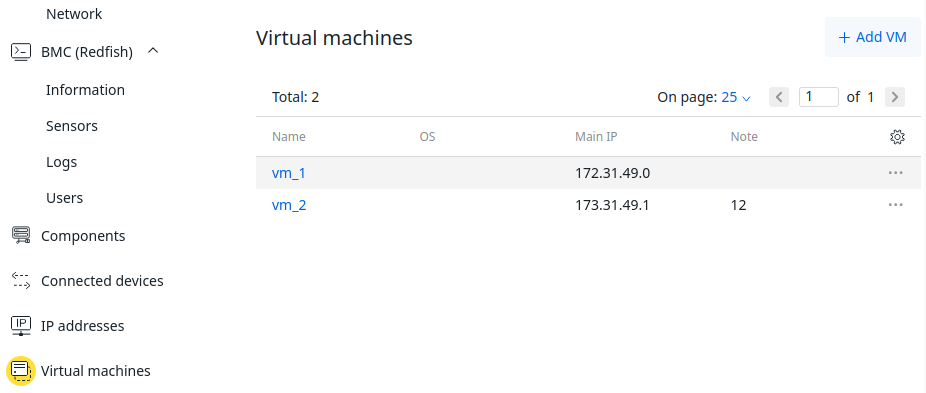
Managing virtual machine information
To add information about a virtual machine:
- Click Add VM.
- Fill in the VM Name field.
- If needed, fill in the fields:
- Operating System;
- Main IP address;
- Note — in this field, you can specify, for example, the virtualization environment or the virtual machine's schedule.
To edit an existing virtual machine record:
- Select the record of the required virtual machine and click
 .
. - In the dropdown menu, click Edit.
- Make changes to the required fields and click Save.
To delete information about a virtual machine:
- Select the record of the required virtual machine and click .
- In the dropdown menu, click Delete VM → Delete.