 En
En
 Es
Es
VMmanager platform uses a built-in time synchronization service for proper cluster operation. For more details, see the article Time synchronization.
The time synchronization service operates automatically, but in some cases, issues may arise that prevent it from functioning correctly. This article describes typical scenarios and their solutions.
Basic time synchronization service check on a node
If a node fails to join the cluster or the platform reports time synchronization problems, perform the following checks:
- Connect to the cluster node via SSH. For more information about connecting via SSH, see Workstation setup.
- Check which time synchronization services are installed: Astra Linux
sudo apt policy chrony
sudo apt policy ntp
Alma Linuxsudo rpm -q chrony sudo rpm -q ntpThe same synchronization service must be used on the platform server and all cluster nodes. For example, if the platform server uses chrony, the nodes must also use it.
NoteAstra Linux uses ntp by default. However, for correct time synchronization in heterogeneous environments where a platform on Astra Linux interacts with nodes on AlmaLinux, it is recommended to use chrony instead of the default service.If both packages are installed, remove ntp:
Important!Before removing any package, ensure the alternative time synchronization service is correctly configured and running.AlmaLinuxsudo dnf remove ntpAstra Linuxsudo apt purge ntp -
Check the status of the ntp or chrony service:
sudo systemctl status ntpsudo systemctl status chronyd -
Check the configuration of the ntp or chrony service:
cat /etc/ntp.confcat /etc/chrony/chrony.confEnsure the configuration file specifies correct time servers. For more details, see the article Time synchronization.
- Check the overall system time status:
timedatectlExpected result: The line
System clock synchronizedshould have the valueyes. - For the chrony service only, additionally check:
- synchronization accuracy:
chronyc trackingExpected result: The value of the
Last offsetparameter should be small, e.g., less than a few milliseconds.Example outputStratum : 3 Ref time (UTC) : Tue Nov 18 09:42:49 2025 System time : 0.000004589 seconds slow of NTP time Last offset : -0.000031991 seconds - current synchronization sources:
chronyc sources -vExpected result: There should be sources with the state
^*or^+. Sources with^?indicate a loss of connection.
- synchronization accuracy:
Tasks fail on nodes
Problem
Time synchronization settings are applied, tasks appear on the nodes, but they fail almost immediately.
Solution
To find the cause of the problem:
- Connect to the server with the platform via SSH. For more information about connecting via SSH, see Workstation setup.
- Switch to the vm_box container:
docker exec -it vm_box sh - Check the following logs from the time the setting was applied:
- /var/log/vm_writer.log;
- /var/log/vmctl.log.
For more details on working with logs, see the article Platform log files.
Setting is not applied on the platform
Problem
After attempting to apply the time synchronization setting, tasks are not created on the nodes.
Solution
To find the cause of the problem:
- Connect to the server with the platform via SSH. For more information about connecting via SSH, see Workstation setup.
- Switch to the vm_box container:
docker exec -it vm_box sh - Check the following logs from the time the setting was applied:
- /var/log/vm_writer.log;
- Installer logs, e.g., /var/log/vm-install.log.
The logs will indicate the specific error preventing the platform from initiating the synchronization process.
For more details on working with logs, see the article Platform log files.
Node is synchronized, but "Time is not synchronized" error persists
Problem
After connecting a new node, all tasks are completed successfully, checks on the node show correct synchronization, but the platform still displays the Time is not synchronized warning.
Solution
This is expected behavior. Synchronization monitoring runs on a schedule once per hour and may have saved the node's state before it was synchronized. To resolve, do one of the following:
- wait for about an hour. The warning should disappear automatically after the next monitoring run;
- restart the monitoring service on the platform server:
docker restart nodewarden
Node was in maintenance mode and its time is desynchronized
Problem
Time settings were changed while the node was disabled. After re-adding it to the cluster, its time is not synchronized.
Solution
To resolve the issue:
- Go to
 Settings in the right sidebar menu → Global Settings section → Time block.
 - On the warning banner Time is not synchronized on N node, click the Apply settings button.
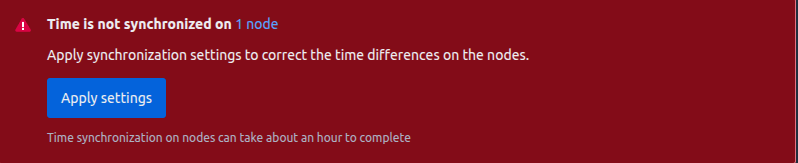
This will initiate the synchronization process on all nodes, including the recently re-added one.
Warning “Time is not synchronized” appears despite correct time settings
Problem
A time synchronization service ntpsec (ntp) is installed and running on a cluster node running Astra Linux. After virtual machines (VMs) are rebooted, the platform displays a warning that the time on the node is not synchronized, even though the server time is correctly configured.
This behavior occurs because restarting VMs triggers a restart of the ntpsec (ntp) service. During this restart, time synchronization is temporarily paused, and the platform may detect this interruption and issue a false warning about unsynchronized time. This behavior results from the interaction between NetworkManager and the time synchronization service and does not indicate a platform error.
Solution
To prevent false warnings, you need to exclude VM network interfaces from NetworkManager management. These interfaces follow specific naming patterns and match the following masks:
vm*net*— VM network interfaces;vm*vxlan*— VM VXLAN network interfaces.
To resolve the issue:
- Connect to the cluster node via SSH. For more information about connecting via SSH, see Workstation setup.
- Verify that all interfaces matching the masks belong to VMs and serve no other functions on the cluster node. Such interfaces can be safely excluded from NetworkManager management:
- List all interfaces that match the masks:
ip link show | grep -E 'vm.*net|vm.*vxlan'Example output40193: vm4385_net0: <BROADCAST,MULTICAST,UP,LOWER_UP> mtu 1500 qdisc noqueue master vmbr0 state UNKNOWN mode DEFAULT group default qlen 1000 40246: vm5607_net0: <BROADCAST,MULTICAST,UP,LOWER_UP> mtu 1500 qdisc noqueue master vmbr0 state UNKNOWN mode DEFAULT group default qlen 1000 40256: vm5628_net0: <BROADCAST,MULTICAST,UP,LOWER_UP> mtu 1500 qdisc noqueue master vmbr0 state UNKNOWN mode DEFAULT group default qlen 1000 327: vm3909_net0: <NO-CARRIER,BROADCAST,MULTICAST,UP> mtu 1500 qdisc pfifo_fast master vmbr0 state DOWN mode DEFAULT group default qlen 1000 - Analyze the output. Expected result: all listed interfaces belong to VMs.
- If the cluster node has interfaces that match the masks but must remain managed by NetworkManager, choose one of the following options:
- do not apply this solution — the time synchronization warning does not affect platform functionality;
- modify the masks to match only VM interfaces while excluding other interfaces.
- List all interfaces that match the masks:
- Exclude VM interfaces from NetworkManager management:
- Create the configuration file 99-unmanaged-devices.conf:
Comment:cat << EOF > /etc/NetworkManager/conf.d/99-unmanaged-devices.conf [keyfile] unmanaged-devices=interface-name:vm*net*;interface-name:vm*vxlan* EOFvm*net*,vm*vxlan*— the VM interface masks. If you modified the masks in step 2c, adjust these values accordingly.
- Restart NetworkManager to apply the changes:
sudo systemctl restart NetworkManager
- Create the configuration file 99-unmanaged-devices.conf:
Related topics: