 En
En
 Es
Es
Technical support staff may require temporary access to your server with the platform. For example, for:
- diagnosing and troubleshooting;
- configuring integrations;
- performing other technical tasks at your request.
Such access is possible only with your explicit permission and is terminated immediately after the work is completed.
If access to the platform on your server is restricted by IP addresses, add the official technical support IP address to the allowed list.
Below are instructions for adding these addresses via the web interface and terminal. Actions are described separately for the root user and for staff with the administrator role.
Web interface
For the root user
To add an address for access:
- Log in to the platform interface as the
rootuser. - In the top right corner, click the administrator name → Back to root → go to the Settings section → User Settings.
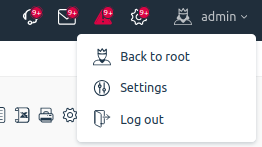
- In the Main settings section, in the Access to control panel field, select the value "Only from IPs in the list".
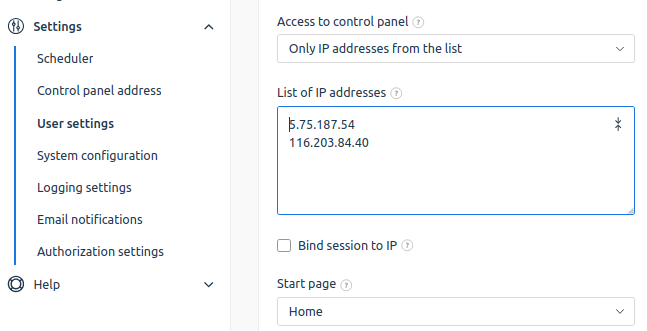
- In the List of IP addresses field, add the IP addresses for technical support access. For example,
5.75.187.54and116.203.84.40. - Click Ok.
To disable access, remove the IP address from the List of IP addresses field.
For an employee with the administrator role
To add an address for access:
- Log in to the platform interface as the
rootuser. - In the main menu, go to the Provider section → Staff → select the account of the employee who needs to be granted access → Edit.
- In the Access Settings section, in the Access to control panel field, select the value "Only from IPs in the list".
- In the List of IP addresses field, add the IP addresses for technical support access. For example,
5.75.187.54and116.203.84.40. - Click Ok.
To disable access, remove the IP address from the list.
Terminal
For the root user
To add an address for access:
- Connect to the server with the platform via SSH. For more information about connecting via SSH, see Workstation setup.
- Create a backup copy of the configuration file /usr/local/mgr5/var/userconf/billmgr.root:
cp /usr/local/mgr5/var/userconf/billmgr.root{,.bak}Explanation - Add the IP address to the configuration:
Example of adding IP addressesecho 'Access 5.75.187.54\nAccess 116.203.84.40' >> /usr/local/mgr5/var/userconf/billmgr.rootExplanation
To disable access, delete the added line from the file.
For an employee with the administrator role
To add an address for access:
- Connect to the server with the platform via SSH. For more information about connecting via SSH, see Workstation setup.
- Create a backup copy of the configuration file /usr/local/mgr5/var/userconf/billmgr.<user_id>, where <user_id> is the id of the employee who needs to be granted access:
cp /usr/local/mgr5/var/userconf/billmgr.<user_id>{,.bak}ExplanationTo find out the id of the employee who needs to be granted access, in the platform interface go to the menu Provider → Employees → select the employee's account. In the id column, their numerical identifier will be indicated. For example, id=13. - Add the IP address to the configuration:
Example of adding IP addressesecho 'Access 5.75.187.54\nAccess 116.203.84.40' >> /usr/local/mgr5/var/userconf/billmgr.<user_id>Explanation
To disable access, delete the added line from the file.
Related topics: