 En
En
 Es
Es
The article contains instructions for setting up a tariff plan for services such as "Domain names".
Getting ready
Before editing a tariff plan, we recommend editing a few domain name settings. You can do it in Products → Product types → select Domains → button Edit:
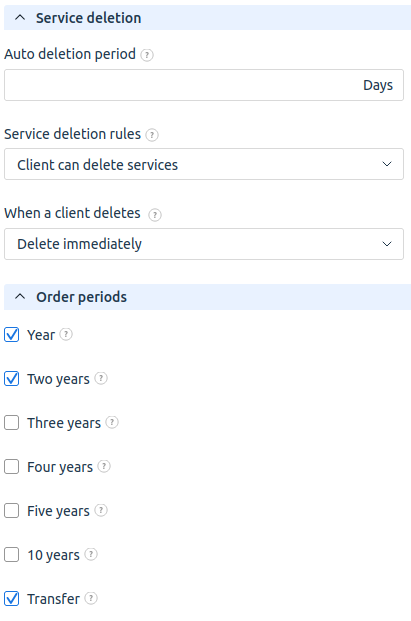
- Service deletion:
- Auto deletion period — thenumber of days after the domain had been expired, after which the domain will be deleted in BILLmanager and in the registrar system.
- Service deletion rules — this policy determines whether clients will be able to delete services. Please note that if this policy is allowed, a service will only be deleted in BILLmanager. It is impossible to delete a domain in the registrar system until it has expired.
- When a client deletes — order periods available in tariff plan settings. If you plan to offer domain name transfer to your clients, you shall enable Transfer period here.
- Order periods — order periods that will be available when setting up a tariff plan.If you provide domain name transfer services, then the period with the "Transfer" type must be included
Tariff settings
This section describes specific tariff plan settings for "Domain names". General principles of tariff plan settings are presented in another article about tariff creation and its settings.
To configure a tariff, go to Products → Tariff plans → click Add:
- Product type: "Domains".
- Tariff plan parameters, General section:
- Registrar — select the processing module to be used for domain registration.
- Tariff plan parameters, Additional settings section:
-
Parameters — this option allows you to configure additional parameters:
Parameter configuration is used only with manual service processing (the tariff plan is connected to the "Manual processing" module). In all other cases, parameters are determined by the processing module.- Client contact, Owner contact, Administrative contact, Technical contact, Billing contact — selected contact types will be requested during domain registration. For each contact type, you can specify a Data set — "Full" or "Short".
- Name servers required — makes specifying name servers mandatory when ordering a domain name.
- Transfer code required — requires a transfer code when transferring a domain.
- On the tariff creation tab, pay attention to the Policiy settings:
- Late renewal penalty. Some domain registrars charge a fee to restore a domain from quarantine. Therefore, the provider may impose a penalty for late service renewal.
- Auto-delete period. The period after which an expired domain becomes available varies between registrars. Therefore, it is recommended to individually set the auto-delete period for each tariff, considering the specifics of the registrar to which the tariff is connected.
- New zone — allows you to add and connect a new top-level domain to the tariff. When this option is enabled, a list of top-level domain settings appears. For example, the data source for domains — WHOIS or RDAP. The verification method in the tariff may differ from the global one. See the article Top-level domains for details.
- Domain zone — the top-level domain under which domains will be provided according to this tariff.
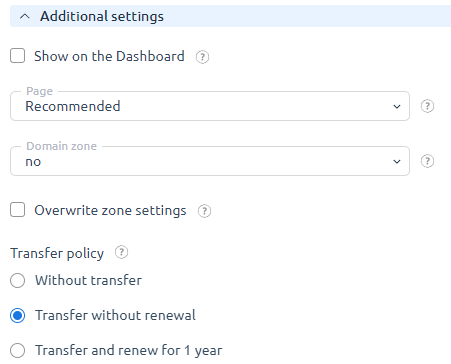
- Transfer policy — policy for providing domain transfers:
- Without transfer — domain transfers are not offered under this tariff.
- Transfer without renewal — when transferring a domain under this tariff, the transferred domain will not be automatically renewed.
- Transfer and renew for 1 year — when transferring, the domain registration period is extended by one year.
-
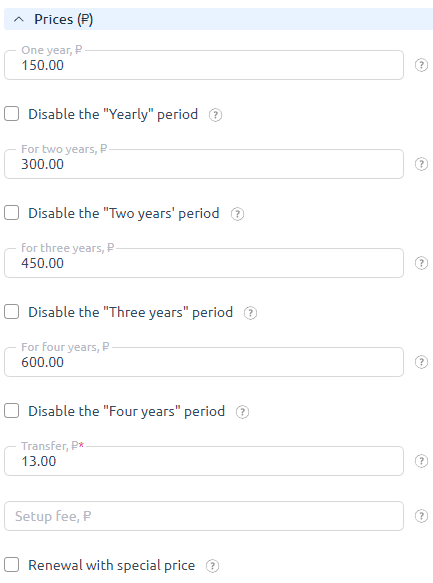
If a transfer-enabling option is selected, the Period prices tab will display the ability to specify its cost:
WHOIS Data protection
When integrating BILLmanager with domain name registrars, you can provide your customers with an additional service WHOIS Data protection. If a domain owner uses this service, their personal data will not be displayed when the domain is checked through the WHOIS service.
Domain name registrars provide two types of data protection:
- free — partial hiding of personal data. Data about the owner is not displayed, while information about the server IP address, NS and domain registrar is available. Provider's clients can activate free data protection via BILLmanager: Client → Domain contacts → Edit → Hide data in WHOIS option.
- commercial — full hiding of personal data for an additional fee. It is impossible to get any information about the domain owner via WHOIS. To charge your customers for full hiding of personal data, configure the additional resource Data protection: Products → Tariff plans → choose Tariff plan → Options→ Change.
Domain name registrars that support the WHOIS Data protection option: