 En
En
 Es
Es
This article describes how BILLmanager downloads and updates the list of operating systems from VMmanager 6. It describes:
- the OS list download mechanism;
- managing template parameters;
- the process of automatic and manual OS list synchronization.
How the OS list is loaded
After configuring the integration, BILLmanager receives from VMmanager 6 a list of available operating system (OS) templates. The received templates are available for selection by default when ordering a VM via a tariff plan with the VMmanager 6 processing module.
The OS list is saved in BILLmanager → Products → Product types → VPS item → Parameters button → Operating system item → Values button.
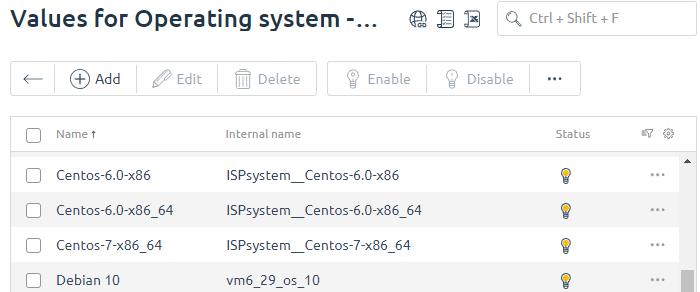
Operating system parameters:
- Name — the name of the OS template. Corresponds to the template name in VMmanager 6;
- Internal name — the unique identification for the OS template. It is created automatically per the template
<OS repository>__<OS template>;
The parameter value is case-sensitive. For example, if you change the repository name from ISPsystem to ISPSYSTEM in VMmanager settings, templates from this repository will not be available. - Tags — the OS template tags. They are used to connect the template with recipes. In the current version, tags are not supported for VMmanager 6;
- Sort — allows you sort out (in direct order) templates during order. Direct order is used;
- Status – the status of the OS template:
-
 — the template is available for order on all tariffs;
 -
 — the template is available for order on certain tariffs;
 -
 — the template is not available on any tariffs.
-
Hard disk size configuration
The minimum hard disk size can be set for the OS according to the system requirements. This value cannot be changed by the billing platform. To check it, go to Products → Product types → VPS item → Parameters button → Operating system item → Values button → select OS → Edit button → Hard drive field. 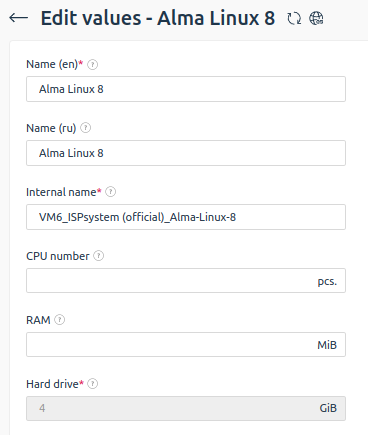
OS template management
To make an OS template available for order you should connect it to a tariff and one of its processing modules:
- Go to Products → Product types → VPS item → Parameters button → Operating system item → Values button.
- Select the operating system and use the buttons:
-
- Modules — a list of all modules for the Virtual server product type. Status shows if a template is available on the processing module:
-
 — the template is connected to the processing module;
 - — the template is not connected to the processing module;
-
- Tariff plans — a list of all tariffs for the Virtual server product type. Status shows if a template is available on the processing module:
-
 — the template is available for order for the given tariff;
 - — the template is not available for order for the given tariff.
-
- Modules — a list of all modules for the Virtual server product type. Status shows if a template is available on the processing module:
If several processing modules with different OS templates are connected to one tariff, all these OS templates will be displayed in one tariff. To prevent "extra" templates from being displayed in one tariff:
- Go to Products → Tariff Plans.
- Select a tariff → Clone button. Create as many tariff clones as the number of processing modules you need to separate from each other.
- Select a clone of the tariff → button Modules → enable a processing module for the tariff. Enable a separate processing module for each tariff clone.
Updates of the OS list
Once an hour, BILLmanager connects to VMmanager to update the information about available OS templates. The billing platform uses the following cron job:
## BILLmanager sync processing module configurations
54 * * * *	/usr/local/mgr5/sbin/mgrctl -m billmgr processing.getconfig >/dev/null 2>&1
To start the synchronization manually through the web interface go to Integrations → Processing modules → select a processing module → Options button.
If the information differs, the list of operating systems in BILLmanager will be changed:
- a template exists in VMmanager 6 but it is missing in BILLmanager — the OS template will be connected to the processing module and tariffs;
- a template exists in VMmanager 6 but it has been disabled in BILLmanager manually — after synchronization, the OS template will still be disabled in BILLmanager;
- a template doesn't exist in VMmanager 6 but it exists in BILLmanager — the OS template will be disabled from the processing module and tariffs.