 En
En
 Es
Es
The article describes the operating principles, step-by-step instructions, and the API of the module for creating your own AI assistant adapter. For information on how to configure working with the AI assistant in the platform interface, see the article Working with the AI assistant.
What an adapter is
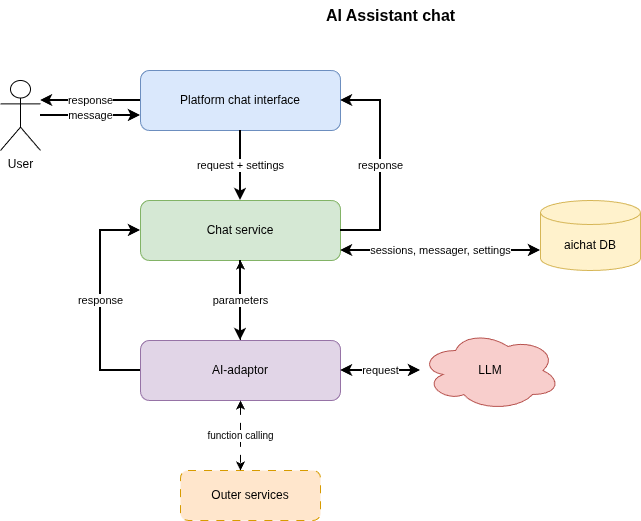
An adapter is a module that connects the chat with an external LLM provider (OpenAI-compatible API, Yandex GPT, your own service, and so on). The chat server does not contact the provider directly: it sends the request to a registered adapter, and the adapter returns the response in a single internal format.
The capabilities of the adapter mechanism are:
- connecting any LLM without changing the server code;
- using several adapters in one chat instance. For example, you can use different adapters for different providers;
- supporting streaming (SSE) and standard response generation;
- model management: the adapter can optionally pass a list of supported models for selection in BILLmanager settings;
- implementing custom LLM logic. For example, function calling, request filtering, and so on;
- passing the API key, URL, and system prompt from the project settings.
Custom adapters are loaded automatically when the chat server starts from the /app/server/adapters/ directory inside the Docker container. Rebuilding the image is not required — just place the adapter file in the container and restart the container.
Built-in adapters
After installing the "AI assistant" module, the following adapters are available in the platform:
Creating an adapter
Below is an instruction for creating an adapter for communicating with an LLM through the OpenAI package. The example uses the adapter name my-llm. Instead of my-llm, you can specify another name.
To create an adapter for communicating with an LLM through the OpenAI package:
- Create the adapter file [adapter-name].adapter.js. For example, my-llm.adapter.js.
- Create the adapter class and implement the required methods:
getName— get the adapter name;getCompletion— get a response from the AI without SSE;getCompletionStream— get a response from the AI with SSE.
Adapter creation example -
Copy the adapter file to the /app/server/adapters directory of the running chat container. To keep the added adapters after rebuilding the image, create your own image based on the chat Docker image.
Where:Example of creating an image with DockerfileFROM docker-registry.ispsystem.com/ispsystem5/chat:1.0.0 WORKDIR /app COPY ./my-llm.adapter.js ./server/adapters/my-llm.adapter.jsdocker-registry.ispsystem.com/ispsystem5/chat:1.0.0— address to the public image of the chat container.
- Create an image from the Dockerfile:
docker build . -t my-llm - Specify the tag of the created image in the script for managing chat images /usr/local/mgr5/etc/docker/services/aichat.sh. Replace the
SERVICE_IMAGEvariable with the tag of the new imageSERVICE_IMAGE="my-llm" - Restart the chat container:
sh etc/docker/services/aichat.sh restart - In the BILLmanager web interface, go to AI asistant → Settings → select the AI assistant → click Edit.
- In the Main section, in the Adaptor field, select the new adapter.
- Set the required settings: API URL, API key. For more details, see the article Working with the AI assistant.
- Save changes.
After configuration, the chat is ready to use. Requests will be sent through the created adapter.
Writing an adapter with external dependencies
The chat service imports files ending with .adapter.js . If this file needs dependencies (for example, the node_modules directory) or packages, they must also be moved into the container into the /app/server/adapters/ directory.
When the node_modules directory is moved into the container, the dependencies become available through the require import.
// The OpenAI library is available for import by default.
const OpenAI = require('openai');
// An example of importing a dependency when moving node_modules with the necessary dependencies to the /app/server/adapters/ directory
const customPackage = require('custom-package');

class MyLLMAdapter {
  ...
}

module.exports = { MyLLMAdapter };
Adapter API
Function descriptions
getName()
Returns the adapter’s unique string name.
getCompletion(params)
Synchronous response generation without a stream.
getCompletionStream(params)
Streaming response generation for SSE mode.
getModels()
Returns a list of models available for selection in the settings.
Interface descriptions
ModelStreamEvent
Stream event (for SSE) is one of the following types:
text_delta — intermediate text fragment.
completed — generation finished (required final event).
tool_call — tool call notification.
failed — error notification. Use this event to handle error scenarios, such as when a tool is called more times than the adapter allows.
AdapterCompletionParams
ModelMessage
ModelResponse
totalTokens, additionalPrice and tag fields are not displayed in the interface and are used only for analytical purposes — to track token consumption and request costs. Filling them out is optional, but recommended if you plan to collect adapter statistics.